
To access WordSpan on iOS, use the Safari browser. Follow the instructions below to add it to your app list or home screen.
Step 01
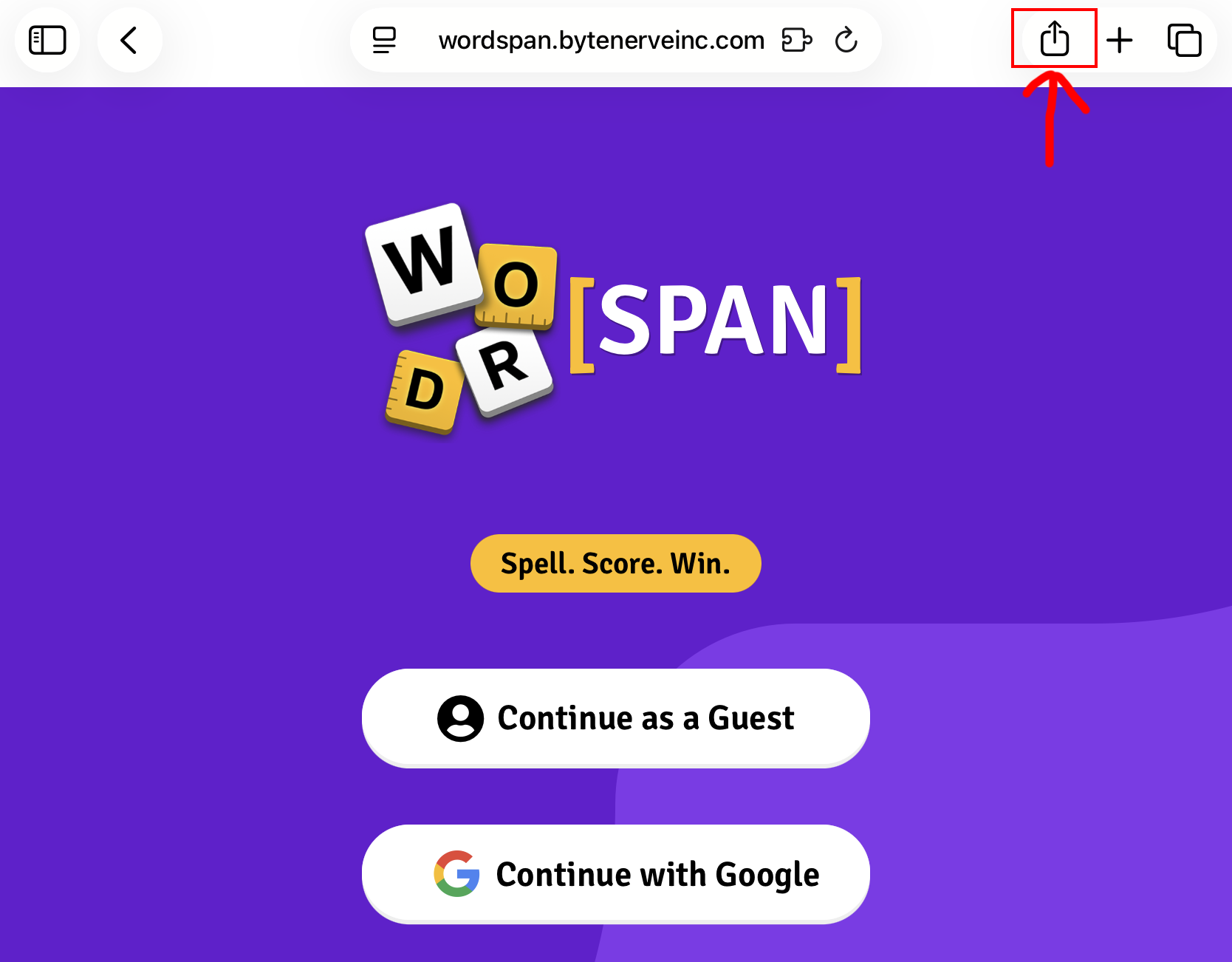
Tap the Share button in Safari
Open Safari on your iPhone or iPad and navigate to wordspan.bytenerveinc.com. Once the page has fully loaded, look for the share icon, as shown below, and then tap on it.
Step 02
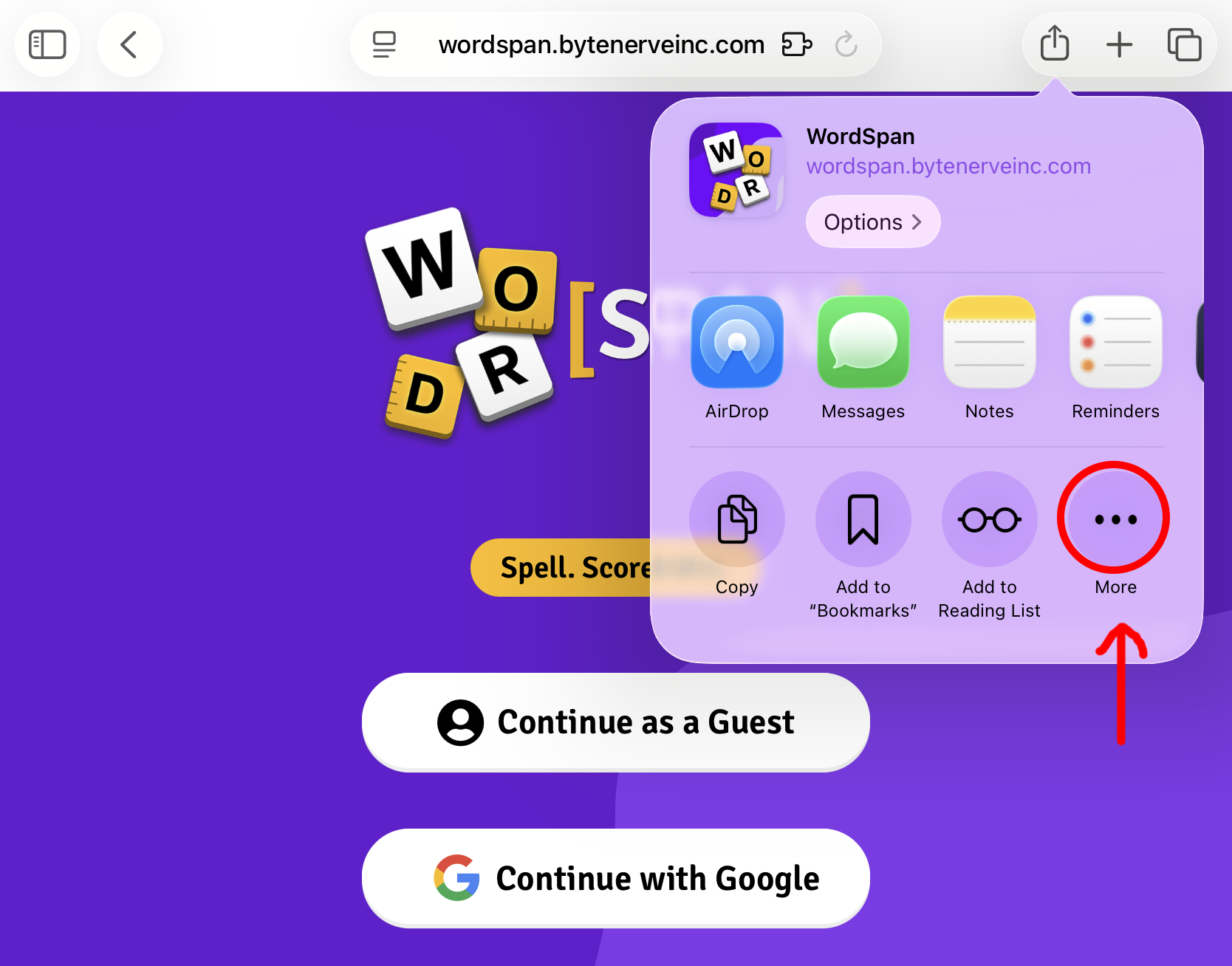
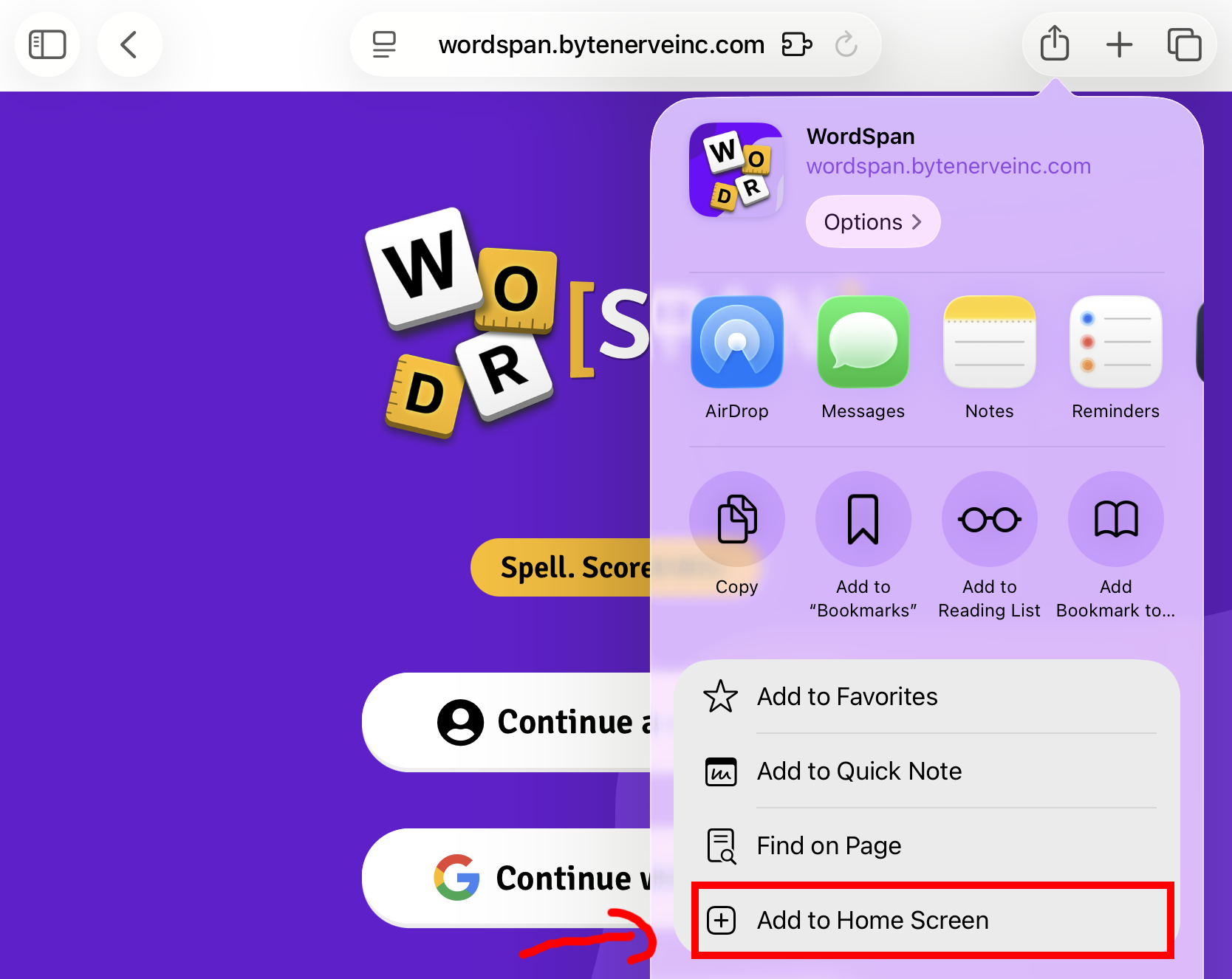
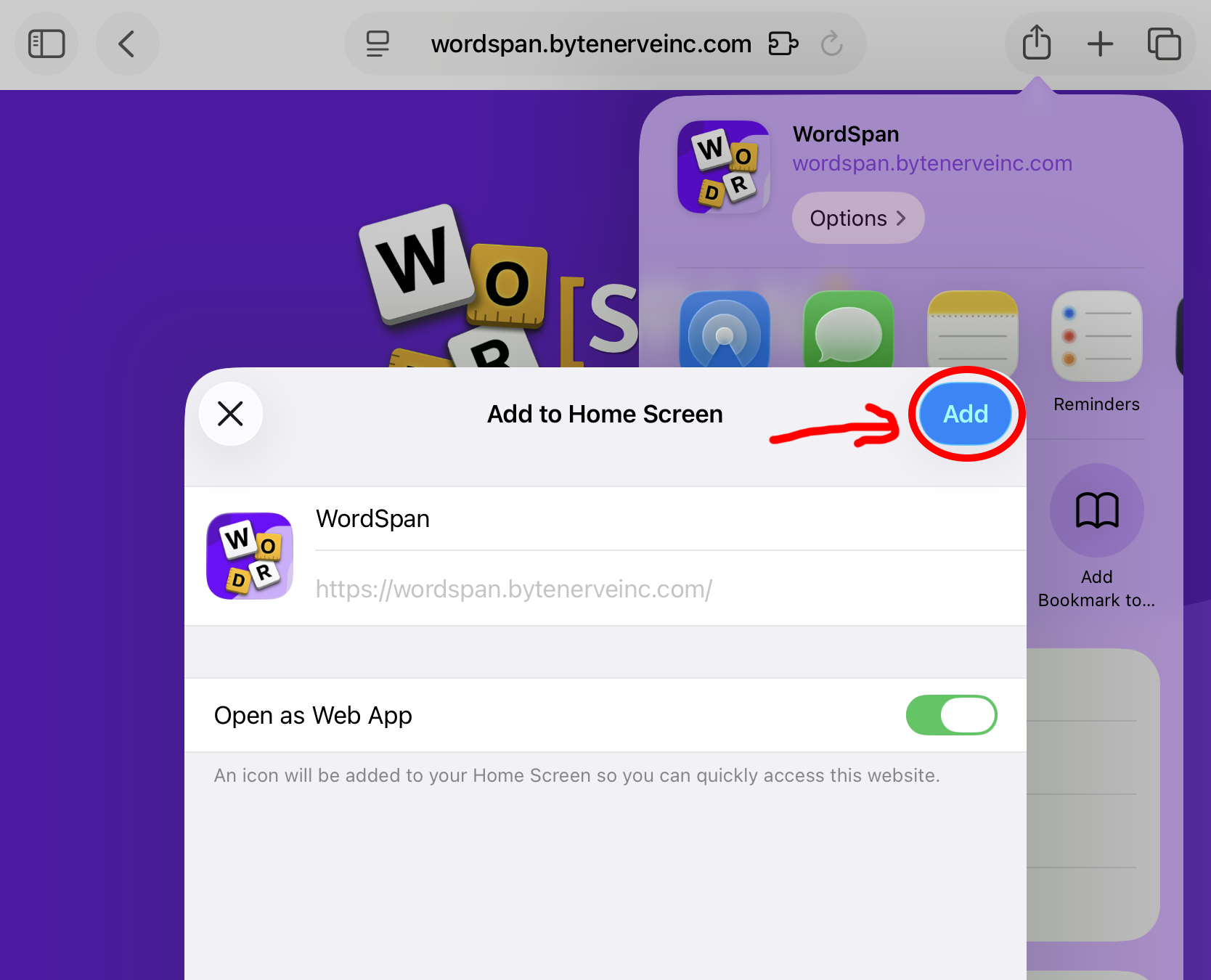
Add to Home Screen
After tapping the share icon, find "Add to Home Screen" in the share options and tap it. If you don't see it right away, tap the three dots for more options. Check the images below for a visual guide.
Step 03
Launch the App
Locate WordSpan on your home screen and launch it.